Glass3 + OpenClaw
Configure OpenClaw
OpenClaw’s HTTP REST adapter (/v1/chat/completions) is off by default. Enable it before using OpenAI-compatible curl.
1. Enable the OpenAI-compatible endpoint
On macOS edit ~/.openclaw/openclaw.json and ensure the gateway stanza includes:
json
{
  "gateway": {
    "http": {
      "endpoints": {
        "chatCompletions": {
          "enabled": true
        }
      }
    },
    "auth": {
      "token": "YOUR_GATEWAY_TOKEN"
    }
  }
}
Or via CLI:
bash
openclaw config set gateway.http.endpoints.chatCompletions.enabled true
openclaw gateway restart
2. OpenAI-compatible curl
Point to your gateway. The model value is usually your OpenClaw Agent id (for example openclaw:main).
bash
curl -X POST http://<LAN_IP>:18789/v1/chat/completions \
     -H "Authorization: Bearer YOUR_GATEWAY_TOKEN" \
     -H "Content-Type: application/json" \
     -d '{
       "model": "openclaw:main",
       "messages": [
         {
           "role": "system",
           "content": "You are an assistant running on Rokid Glass."
         },
         {
           "role": "user",
           "content": "Check the rokidspace project status"
         }
       ],
       "stream": false
     }'
3. Streaming
bash
curl -X POST http://<LAN_IP>:18789/v1/chat/completions \
     -H "Authorization: Bearer YOUR_GATEWAY_TOKEN" \
     -H "Content-Type: application/json" \
     -d '{
       "model": "openclaw:main",
       "messages": [{"role": "user", "content": "Hello"}],
       "stream": true
     }'
Lingmou cloud console
Console: https://x-inspection.rokid.com/
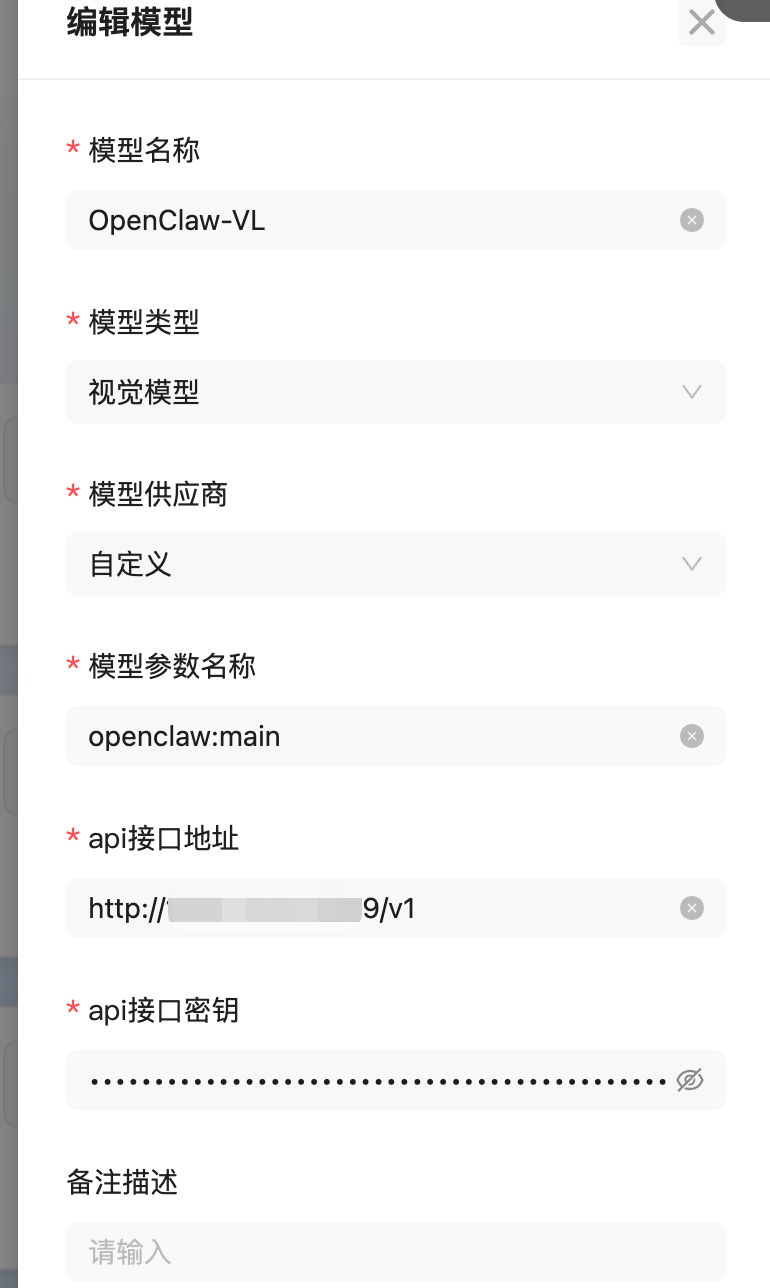
In Model center, register
openClawandopenClawVL(same settings except type).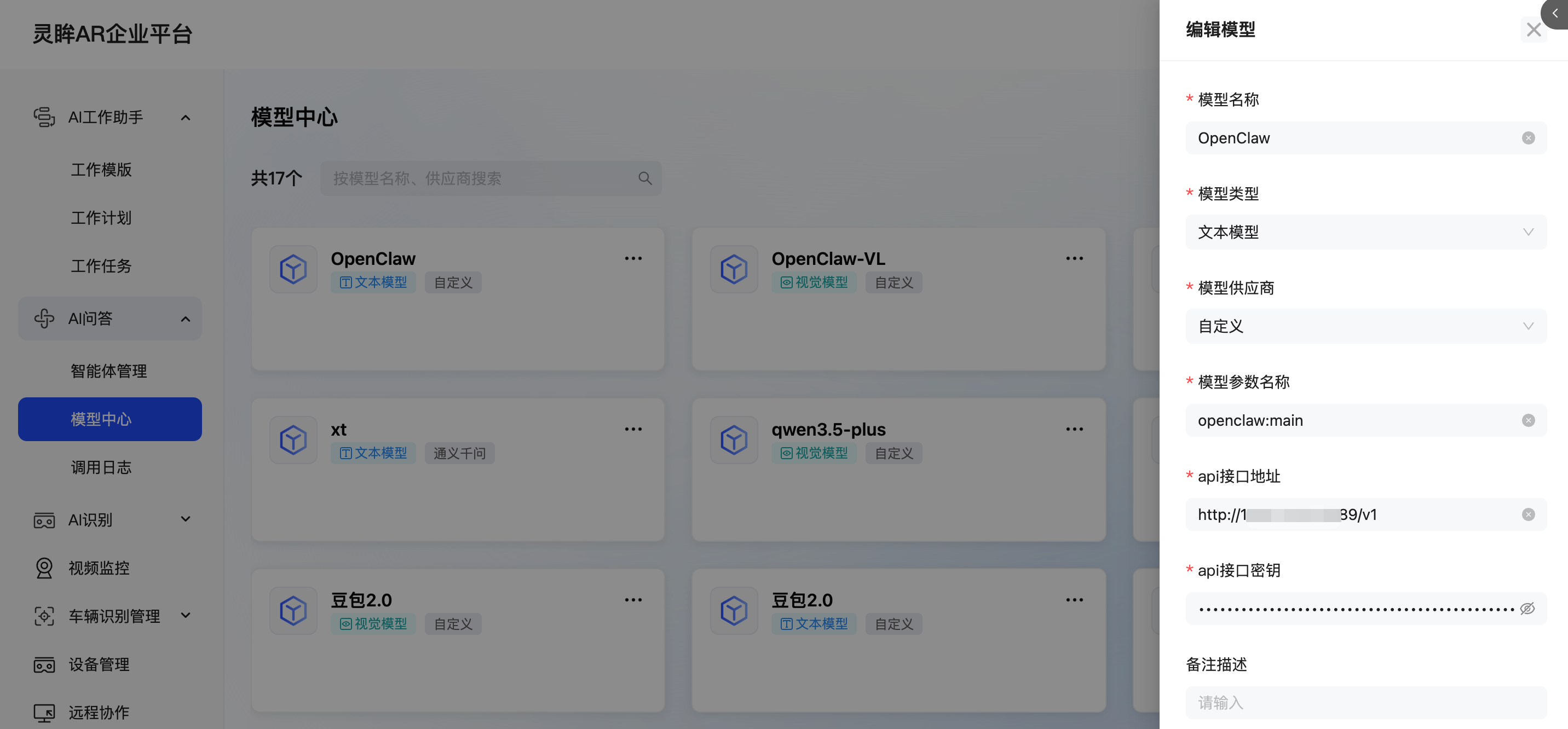
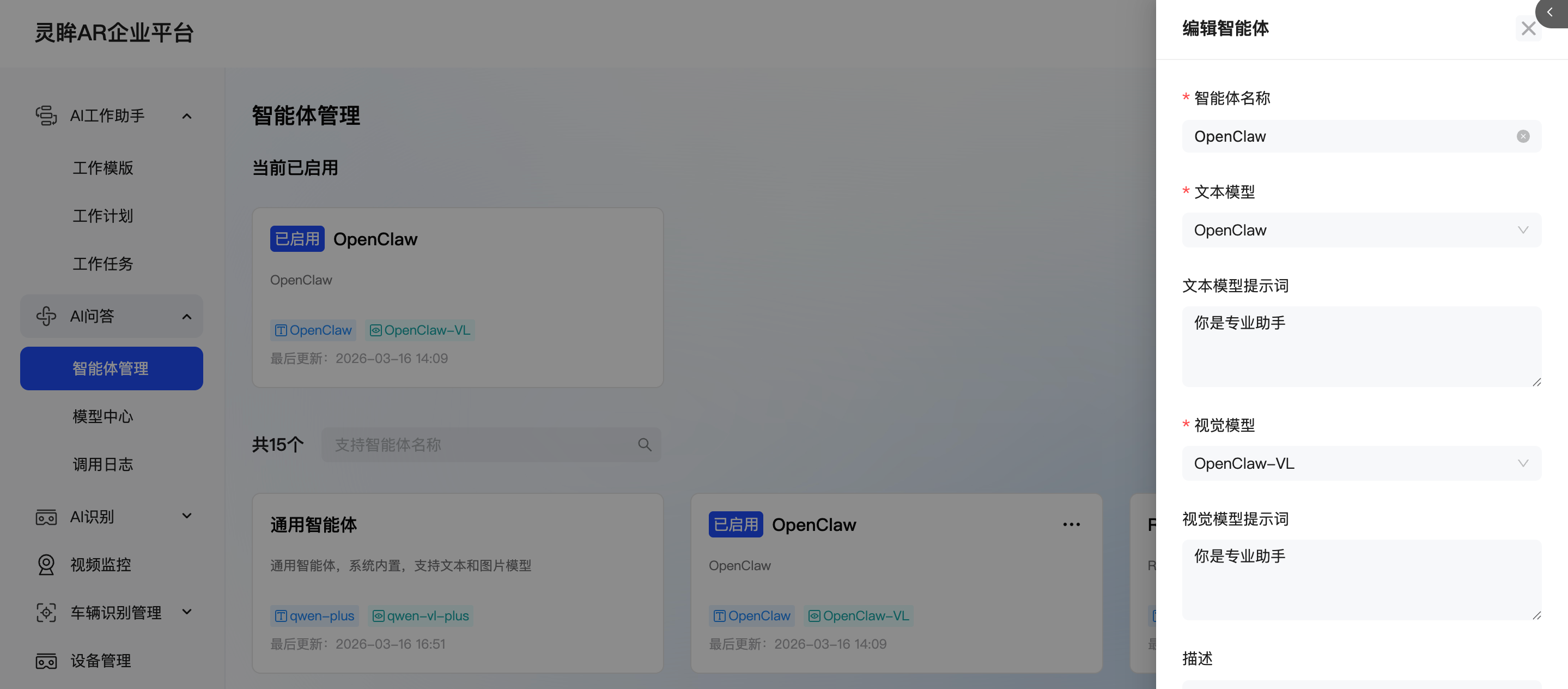
Create an OpenClaw agent, pick the model, and enable it.
Glass3 Enterprise usage
After configuration, the glasses-side AI Q&A app can talk to OpenClaw directly.