Wireless Mirroring with RokidMirror
When developing Glass3 apps, you can mirror the glasses screen to a computer for debugging, demos, and troubleshooting. We recommend using the RokidMirror wireless projection tool together with the built-in Scan app on enterprise Glass3 systems.
RokidMirror Wireless Mirroring
RokidMirror is useful for demos, remote troubleshooting, and debugging scenarios where you do not want to keep the data cable connected. It includes the required adb and scrcpy runtime. The current version is 1.1.6 for both macOS and Windows. It can use one QR code to connect the glasses to a target Wi-Fi network, temporarily enable wireless ADB, and start mirroring automatically.
Choose the glasses-side app
Prefer the built-in Scan app on enterprise Glass3
The current enterprise Scan system app already supports scan-to-mirror. Open Scan from the glasses app list and scan the QR code shown by RokidMirror. No separate APK is required.
If the built-in Scan app does not recognize the mirroring QR code, check for a Glass3 enterprise system update first. When the system cannot be upgraded immediately, use the standalone Mirror Scan APK below as a temporary fallback.
On consumer glasses, wireless ADB also depends on the system authorization and the Rokid AI App > Developer > Glasses ADB debugging switch. The standalone APK is intended for compatibility validation and temporary use; it does not replace the built-in enterprise Scan app.
Tool Downloads
For a complete offline package, download the kit containing the Chinese wireless-mirroring guide, both macOS DMGs, the Windows ZIP, and the fallback APK:
- Download the complete RokidMirror wireless mirroring kit v1.1.6
- Download the Chinese wireless mirroring PDF guide only
Individual downloads:
| System | Architecture | Version | Download |
|---|---|---|---|
| macOS | Apple Silicon / arm64 | 1.1.6 | RokidMirror-macos-arm64-v1.1.6.dmg |
| macOS | Intel / x86_64 | 1.1.6 | RokidMirror-macos-x86_64-v1.1.6.dmg |
| Windows | Windows x64 | 1.1.6 | RokidMirrorTool-windows-x64-v1.1.6.zip |
| Glass3 | arm64-v8a | Fallback Mirror Scan 1.0.6 | RokidMirrorScan-v1.0.6-system-signed.apk |
For desktop changes and compatibility notes, see RokidMirror Release Notes.
Install and First Launch on macOS
Download the DMG for the Mac processor. Use Apple Silicon / arm64 for Apple M1/M2/M3/M4 and newer chips, or Intel / x86_64 for Intel-based Macs.
- Double-click the downloaded
.dmg. - Drag
RokidMirror.appon the left to the Applications folder on the right. - Wait for the copy to finish, then eject the Rokid Mirror disk image.
- Launch RokidMirror from Finder Applications.
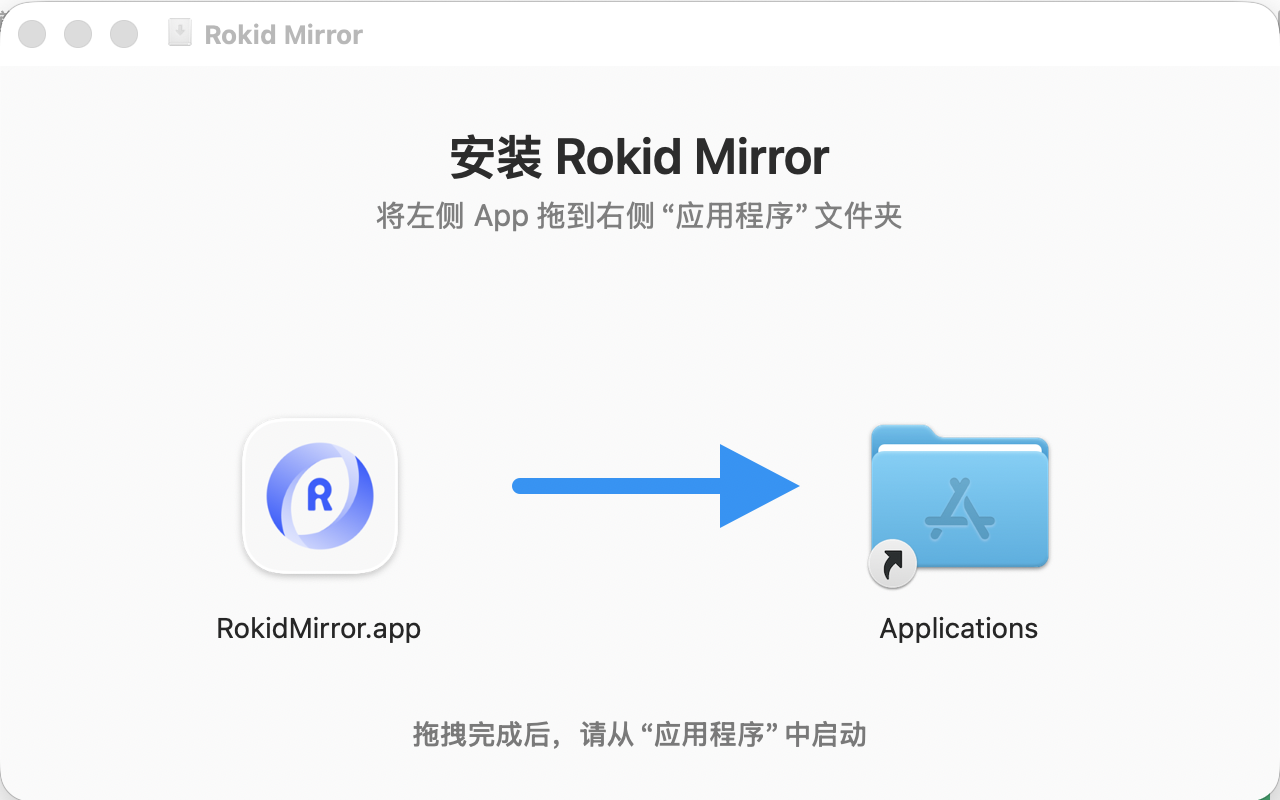
Do not keep running the app directly from the DMG, Downloads, or a temporary extraction folder. Installing it under
/Applicationsgives macOS a stable path and identity for privacy permissions such as Local Network access.
On the first launch, macOS may report that the app cannot be opened or that its developer cannot be verified. This does not mean the package is damaged. Gatekeeper is blocking an app that has not been notarized by Apple or is being opened for the first time after an Internet download. Allow this specific app as follows:
- Select OK to close the warning.
- Open System Settings > Privacy & Security.
- Scroll to the message stating that
RokidMirror.appwas blocked, then select Open Anyway. - Confirm with Touch ID or the Mac login password, and select Open again when prompted.
- After this one-time confirmation, the app can normally be launched directly.
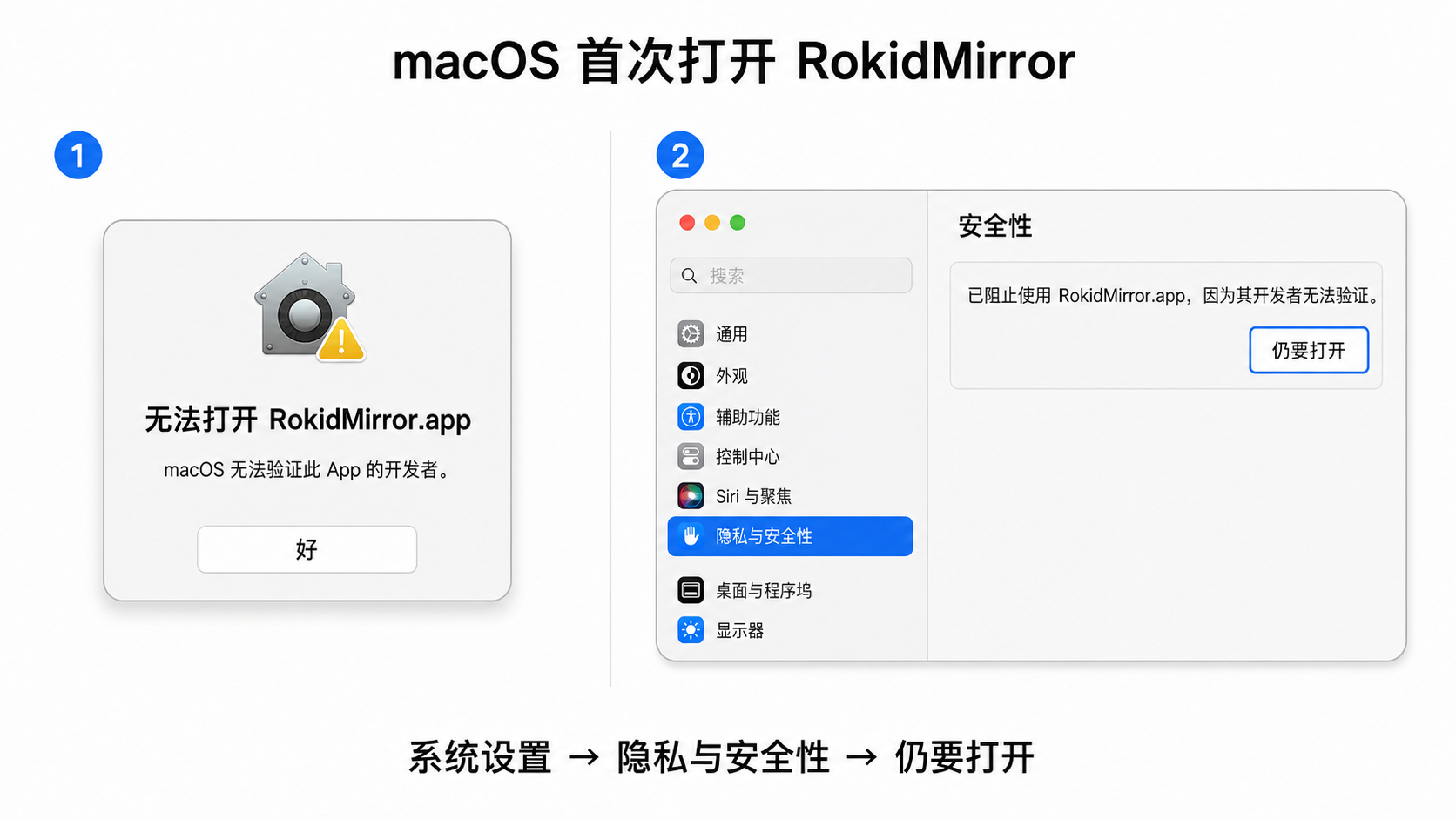
Only select Open Anyway for the RokidMirror package downloaded from this documentation. Do not bypass macOS security warnings for apps from an unknown source.
macOS may also request Local Network access the first time RokidMirror connects to the glasses. Select Allow. If access was previously denied, the failure card shows an Open Local Network Settings action. Enable RokidMirror under System Settings > Privacy & Security > Local Network, quit the tool completely, and reopen it.
If RokidMirror is not yet listed, first verify that it was copied into Applications, then quit and reopen it so the app performs a real local-network connection attempt. Return to the permission page afterward. The app can open System Settings but cannot grant itself privacy access.
If Remember password was selected in the tool, RokidMirror stores the credentials entered by the user in its own macOS Keychain item. It does not read passwords saved by the operating system for other Wi-Fi networks. The first access to that item, or a permission recheck after an app update, may ask for the Mac login password. To restore the saved credentials automatically on later launches, select Always Allow. Selecting Allow normally grants one-time access only, so macOS may ask again later. This Keychain prompt is separate from the Local Network permission above.
Extract and Run on Windows
After downloading the Windows ZIP:
- Extract the complete archive to a local directory. Do not run the application from inside the ZIP.
- Open the extracted
RokidMirrorToolfolder. - Double-click
RokidMirror.exe.
Keep the tools directory and its bundled adb, scrcpy, DLL, and scrcpy-server dependencies beside the executable. Do not copy only the EXE, and do not run it from the ZIP preview. Place the complete folder in a local directory where the current user has read and write access.
If Windows SmartScreen blocks the first launch, first confirm that the ZIP came from this documentation, then select More info > Run anyway. Do not bypass security warnings for software from an unknown source.
If Windows Defender Firewall prompts on the first launch or first callback:
- Select Private networks, then choose Allow access.
- Do not enable Public network access unless the network is explicitly trusted and requires it.
- If no prompt appears but the callback fails, open Windows Security > Firewall & network protection > Allow an app through firewall and allow
RokidMirror.exeon Private networks. - On a trusted LAN, open Settings > Network & Internet > Wi-Fi (or Ethernet) > Current network and set the network profile to Private.
An enterprise firewall or endpoint security product must also allow inbound TCP 18080–18089 from the glasses and outbound TCP 5555 to the glasses. These ports are used only for LAN callbacks and wireless ADB; Internet access is not required.
Prepare the glasses-side scan app
On enterprise Glass3, use the built-in Scan system app first. Install the standalone Mirror Scan APK only when the system cannot yet be upgraded, the built-in app does not support the mirroring QR code, or consumer-system compatibility needs to be validated.
Installing the standalone APK requires a Glass3 data cable and USB debugging. Download the APK, open a terminal in its directory, and run:
adb devices
adb install --no-incremental -r RokidMirrorScan-v1.0.6-system-signed.apk
After installation, open Mirror Scan from the glasses app list.
If the app is installed but cannot be opened after switching between enterprise and consumer systems, connect the cable and run:
adb shell pm enable --user 0 com.rokid.glass.mirrorscanScan to Start Mirroring
- Download the matching 1.1.6 package. On macOS, open the DMG and drag
RokidMirror.appinto Applications. On Windows, fully extract the ZIP and openRokidMirrorTool/RokidMirror.exe. - Select 扫码投屏 on the home page. The tool reads the current Wi-Fi name. Enter the password when no saved password is available.
- To connect the glasses to another network, open 扫码连 WiFi, enter the target network, and select 应用到首页. The home QR code will include both Wi-Fi provisioning and wireless ADB instructions.
- On enterprise glasses, open the built-in Scan app. For the fallback or consumer compatibility path, open the standalone Mirror Scan app. Scan the QR code shown by the desktop tool.
- The glasses connect to the target Wi-Fi, temporarily enable wireless ADB, and report device information to the computer. The glasses report success and leave the scan page only after the tool confirms that
scrcpyis truly ready. - To end a session, select the red stop button for that device.
Scanning the enable QR code again for a device that is already mirrored reuses the current session and does not start a duplicate scrcpy window. Multiple glasses can mirror concurrently and can be stopped independently.
The 传输眼镜声音 option applies to newly started sessions. Stop all active sessions before changing this option.
A generated QR code may contain target Wi-Fi credentials. Do not share screenshots or leave the code displayed on an untrusted screen.
Network Requirements
- The complete workflow can run on a private LAN and does not require Internet access.
- The Mac and glasses must be on the same reachable network, or on different SSIDs/VLANs that allow routing between clients.
- Disable AP isolation, client isolation, or guest-network policies that block peer-to-peer access.
- The firewall must allow the glasses to reach the callback listener and the Mac to reach wireless ADB. The default TCP ports are
18080–18089for callbacks and5555for ADB. - Standard WPA/WPA2 networks can use a password directly. Complete browser-based sign-in, SMS verification, or custom certificate enrollment on the glasses before using the QR workflow.
Wireless mirroring depends on LAN reachability and stability. Test the network before formal demos and keep the Glass3 data debugging cable as a fallback.
Troubleshooting
| Symptom | Check |
|---|---|
| The glasses report that notifying the desktop tool failed | Keep the desktop tool running, regenerate the QR code after a network change, and make sure the glasses can reach the callback IP and port encoded in the QR code. |
No route to host or adb connect fails | The tool retries bounded temporary failures caused by roaming or AP changes. If the issue persists, confirm peer-to-peer reachability, disable AP/client isolation, and allow TCP 5555 through the firewall. On macOS, allow RokidMirror to access the Local Network. On Windows, verify that the current network is Private and that Windows Firewall allows RokidMirror. |
Wireless ADB fails to start, port 5555 refuses the connection, or the device is offline or unauthorized | For consumer glasses, open Rokid AI App > Developer on the phone and make sure Glasses ADB debugging is enabled, then regenerate and scan the QR code. For enterprise glasses, or when the switch is already enabled, continue with the system-permission, ADB transport, and shared-server diagnostics in the log. |
| A shared ADB server warning appears | Port 5555 is reachable, but the shared ADB server on 5037 is inconsistent. Check the ADB executable path shown in the dialog. Restart it only if temporarily interrupting other Android debugging sessions is acceptable. |
| scrcpy fails to start | Open the application log to see the captured scrcpy error. Confirm that the target ADB state is device, then resolve authorization, stale transports, or reported scrcpy arguments. |
| The glasses remain on “waiting for the desktop to start mirroring” | Confirm that RokidMirror 1.1.6 is running, then inspect its ADB and scrcpy log. On a final desktop failure or timeout, standalone Mirror Scan 1.0.6 keeps the scan page open so the user can retry. |
| Export reports that a remote file is missing | Version 1.1.5 and later refresh the media list and current path and skip individual files that were moved or deleted. Reopen the export window and retry. |
| Wi-Fi password error or connection timeout | Verify the SSID, password, and security type. Complete browser-based sign-in, SMS verification, or custom certificate enrollment on the glasses first. |
| Wireless ADB permission is missing | Install the build authorized for the glasses system and platform certificate. |
| The app cannot open after switching systems | Run adb shell pm enable --user 0 com.rokid.glass.mirrorscan and retry. |
| Mirroring is laggy or disconnects | Use a stable 5 GHz Wi-Fi network with peer-to-peer access, and check packet loss and computer sleep settings. |
For direct projection over a data cable, see Wired Mirroring.