GB/RTSP Streaming Integration
This page describes how to associate a Glass3 device with a GB platform in the Lingmou console, start on-demand streaming, and verify the video stream through an RTSP URL. Before integration, make sure the target device is registered on the platform and has a usable network connection.
Screenshots are provided to illustrate the operation path. Platform entry names, fields, and visual styles may change by version. Use the actual console as the source of truth.
Scenarios
Security, inspection, emergency command, and remote operation scenarios often need to bring the first-person view from Glass3 into a video monitoring platform. GB/RTSP streaming is suitable when the business system needs a standard video stream for monitoring walls, dispatch consoles, recording systems, or downstream video services.
- Connect Glass3 video streams to an existing enterprise video monitoring platform.
- View, dispatch, or manage real-time glasses video through a GB platform.
- View first-person footage in security inspection, remote duty, emergency response, or field enforcement scenarios.
- Obtain the RTSP URL and validate or consume the stream in a local player, video gateway, or business system.
Prerequisites
- The device is registered in the Lingmou console and is available for use.
- GB or RTSP platform parameters are ready, such as platform address, port, device ID, channel ID, and registration password.
- The glasses network can reach the target video platform, and the player or business system can access the RTSP URL.
1. Associate the Device with a GB Platform
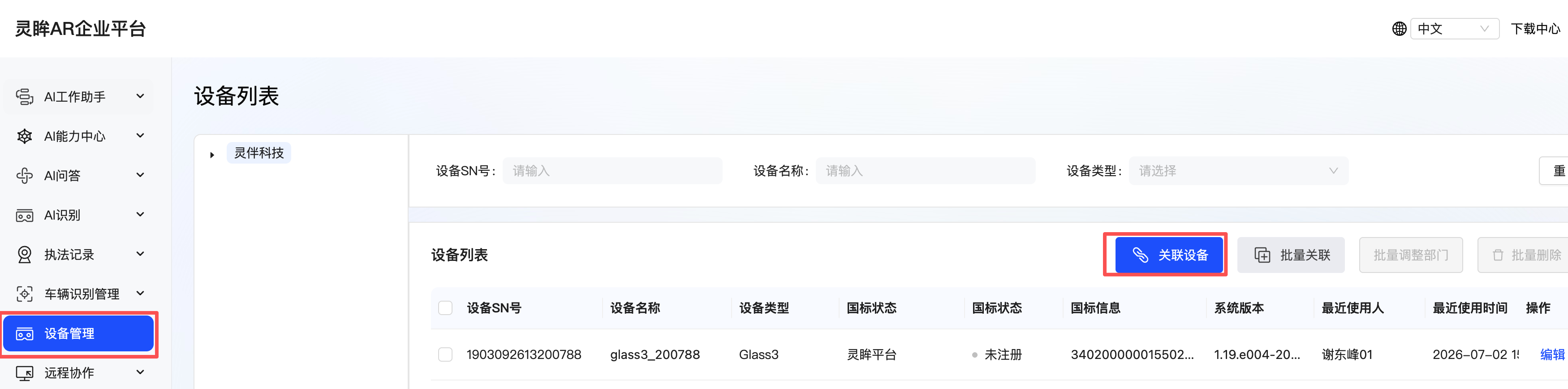
Open device management in the Lingmou console, find the glasses device to test, and enter the device association or edit page.
Select the target platform in the GB platform configuration. For Lingmou platform tests, select the built-in GB platform. For third-party platform integration, select the platform that has already been configured and fill in the required project parameters.
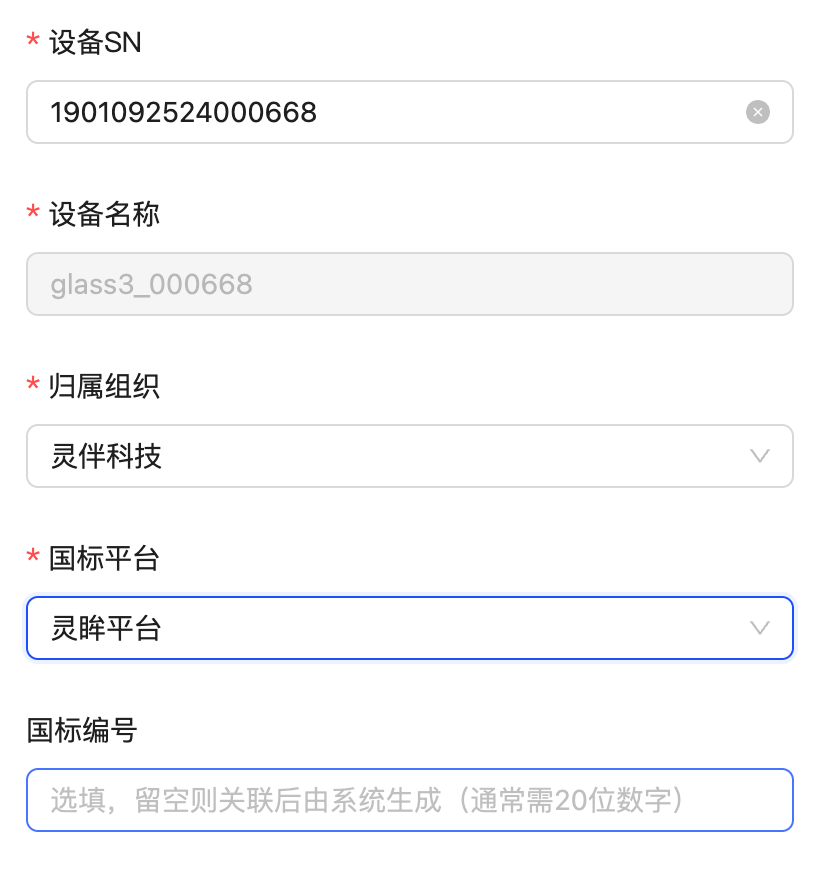
After saving, the device is associated with the selected platform.
2. Synchronize Glasses Account Information
Open the Scan app on the glasses and scan the login QR code in the upper-right corner of the platform page. After successful authorization, the glasses will play an authorization success prompt.
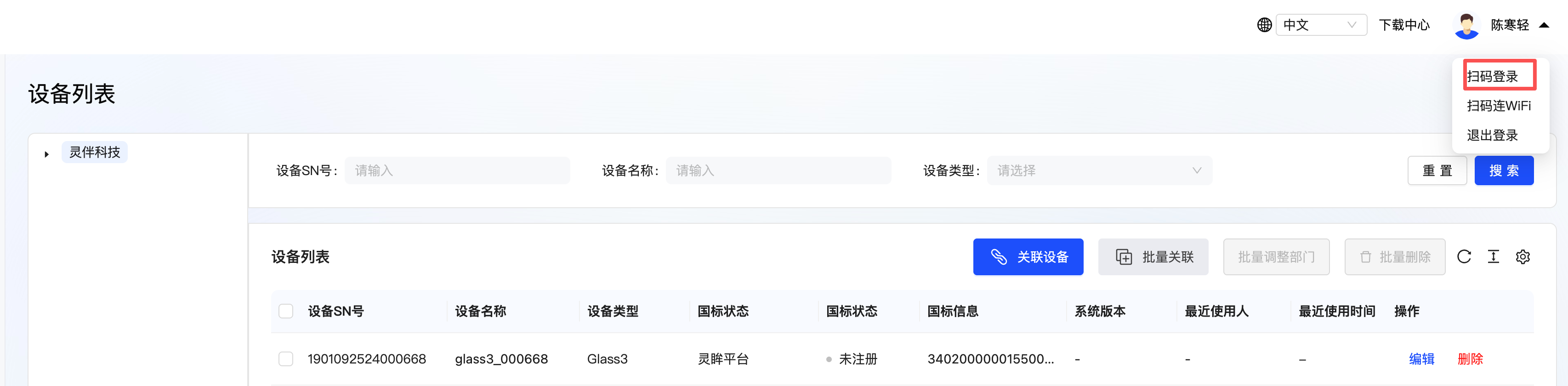
Refresh the device page. The account-related data should now be displayed.

3. Get the Device GB ID
Open the device edit page again and check the GB ID generated by the system. This ID is required for on-demand streaming and RTSP URL validation.
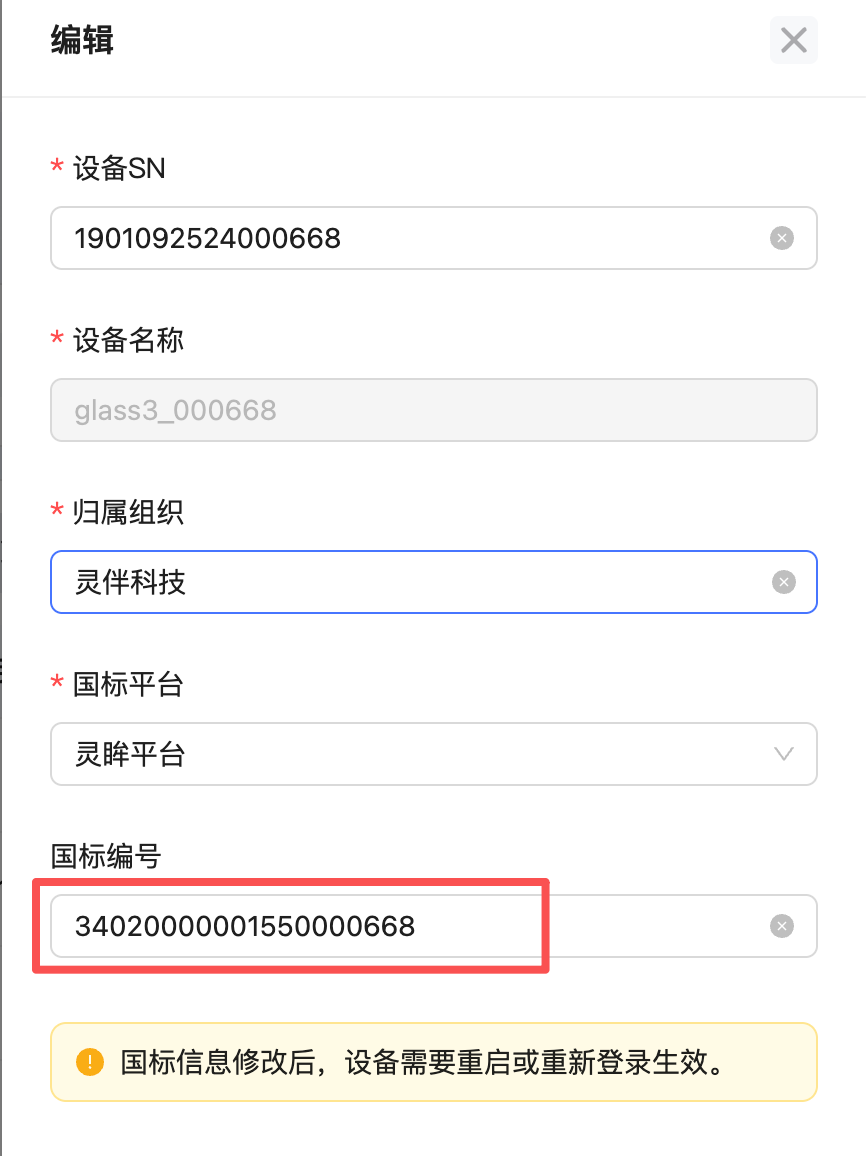
Keep the device SN, GB ID, platform name, and test time in the integration record. This makes registration and streaming issues easier to troubleshoot later.
4. Start On-Demand Streaming
Open Lingmou monitoring under law enforcement records, then search for the target device by SN.
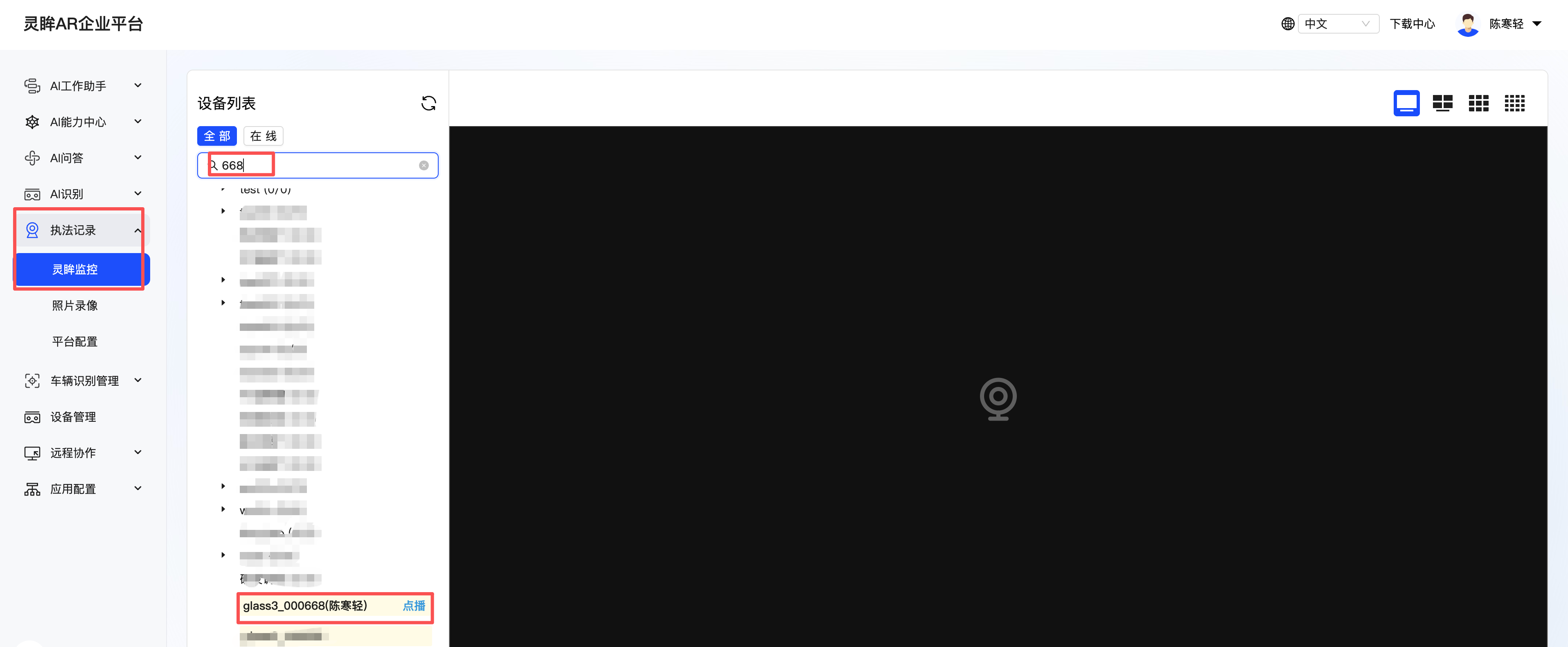
Click the on-demand playback button. If the page shows live video, the GB streaming path is available.
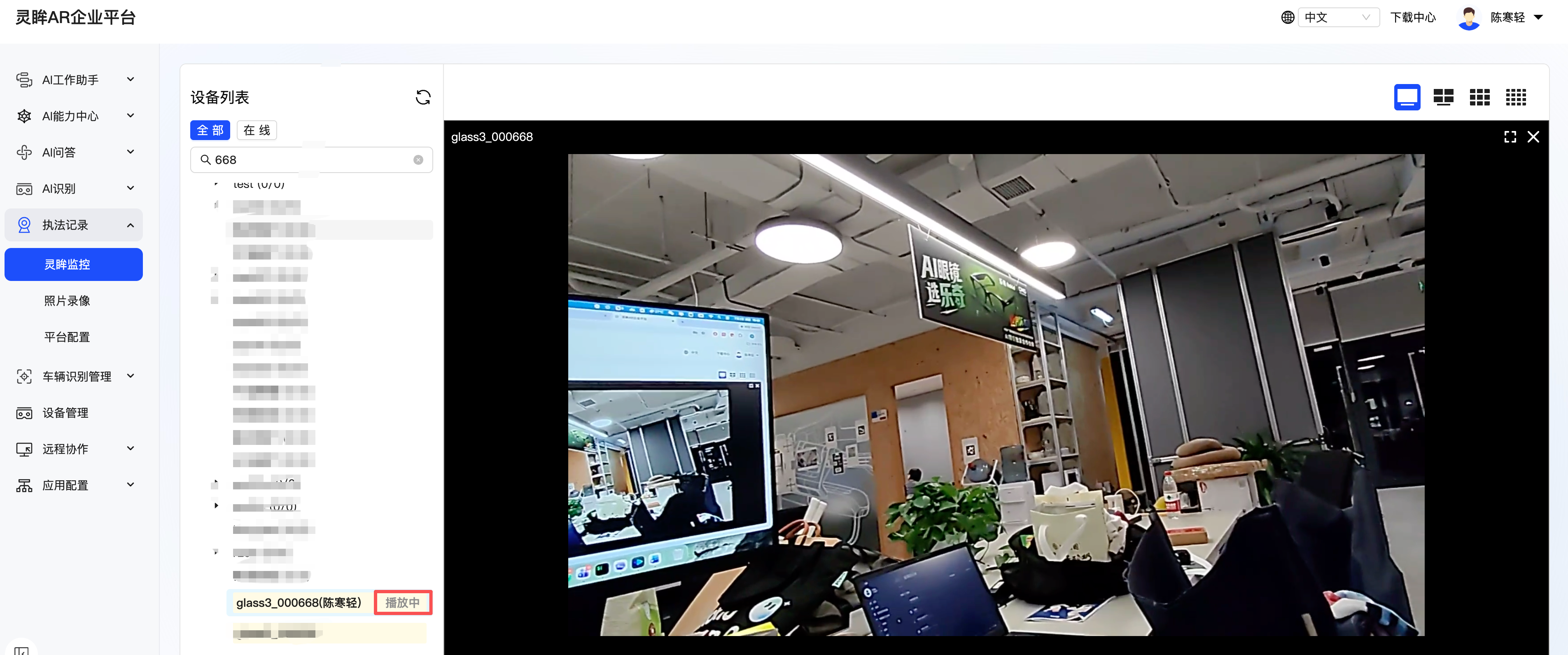
The RTSP URL is available only after on-demand streaming is started on the platform. If the player cannot open the RTSP URL, first confirm that the platform page has started playback successfully and the status is "playing".
5. Build the RTSP URL
The RTSP URL format depends on the project configuration. A common test format is:
rtsp://<RTSP_HOST>:<RTSP_PORT>/rtp/<GB_ID>_<GB_ID>Production environment example:
rtsp://ar-security-media.rokid.com:5540/rtp/34020000001550000668_34020000001550000668Where:
<RTSP_HOST>: RTSP service address. Production example:ar-security-media.rokid.com.<RTSP_PORT>: RTSP service port. Production example:5540.<GB_ID>: GB ID generated or configured on the device edit page.
6. Validate the RTSP Stream
After obtaining the RTSP URL, use an RTSP-capable player or command-line tool to validate the stream. The examples below use IINA and ffplay on macOS, and PotPlayer on Windows.
macOS: IINA
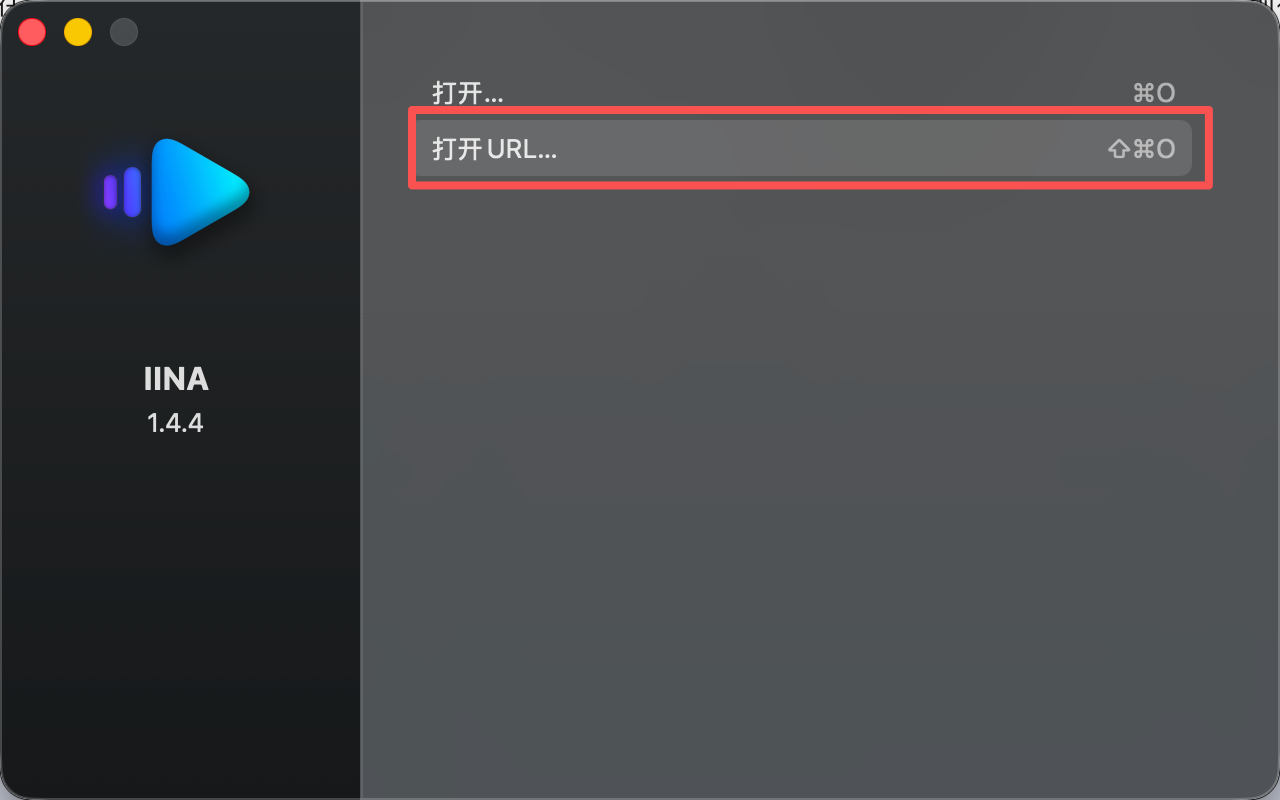
Open IINA and choose the Open URL entry.
Paste the RTSP URL.
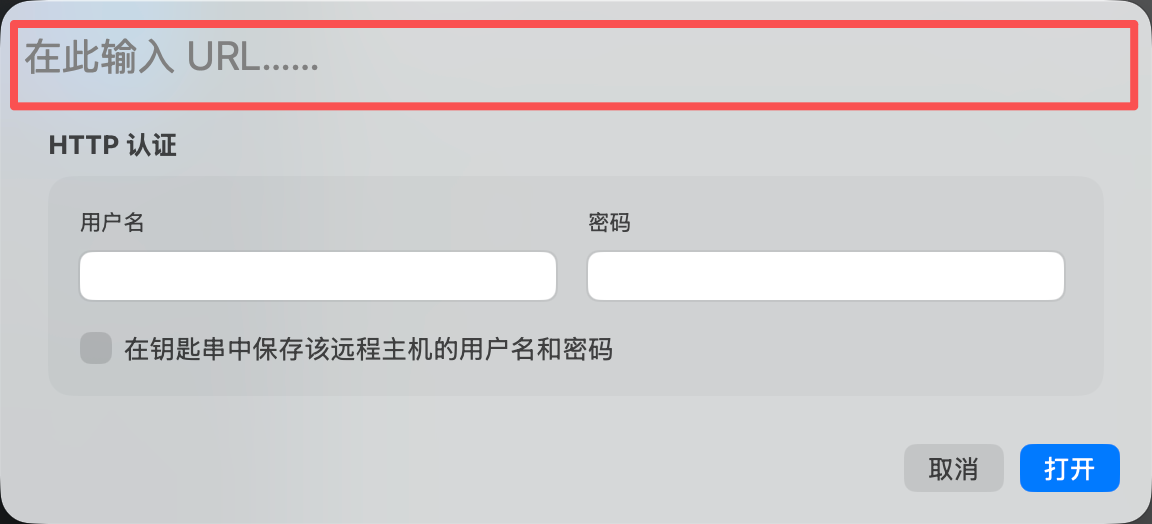
Confirm opening the URL.
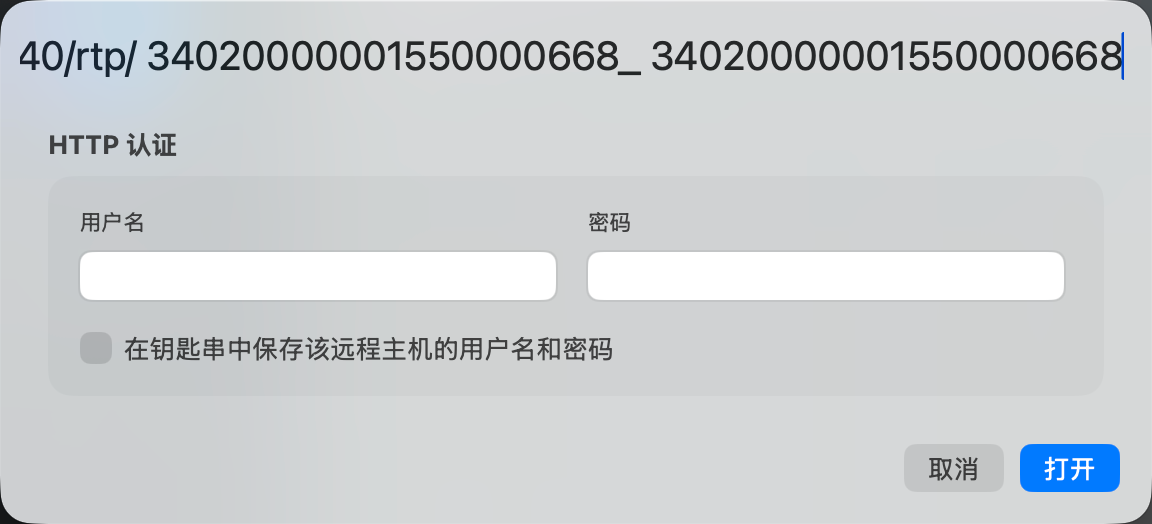
If live video from the glasses appears in the player, RTSP streaming is verified.
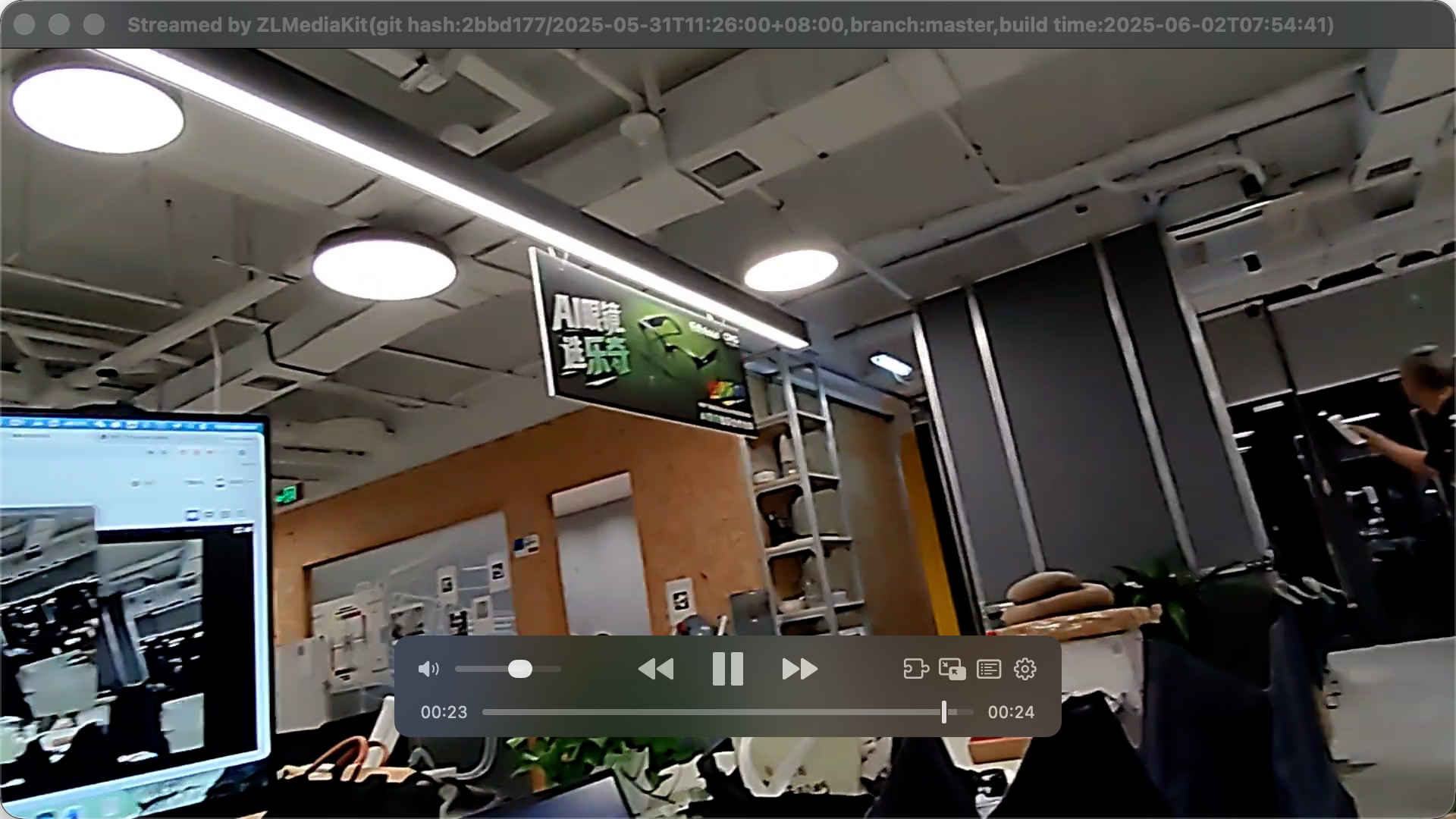
You can also use ffplay:
ffplay "rtsp://ar-security-media.rokid.com:5540/rtp/34020000001550000668_34020000001550000668"
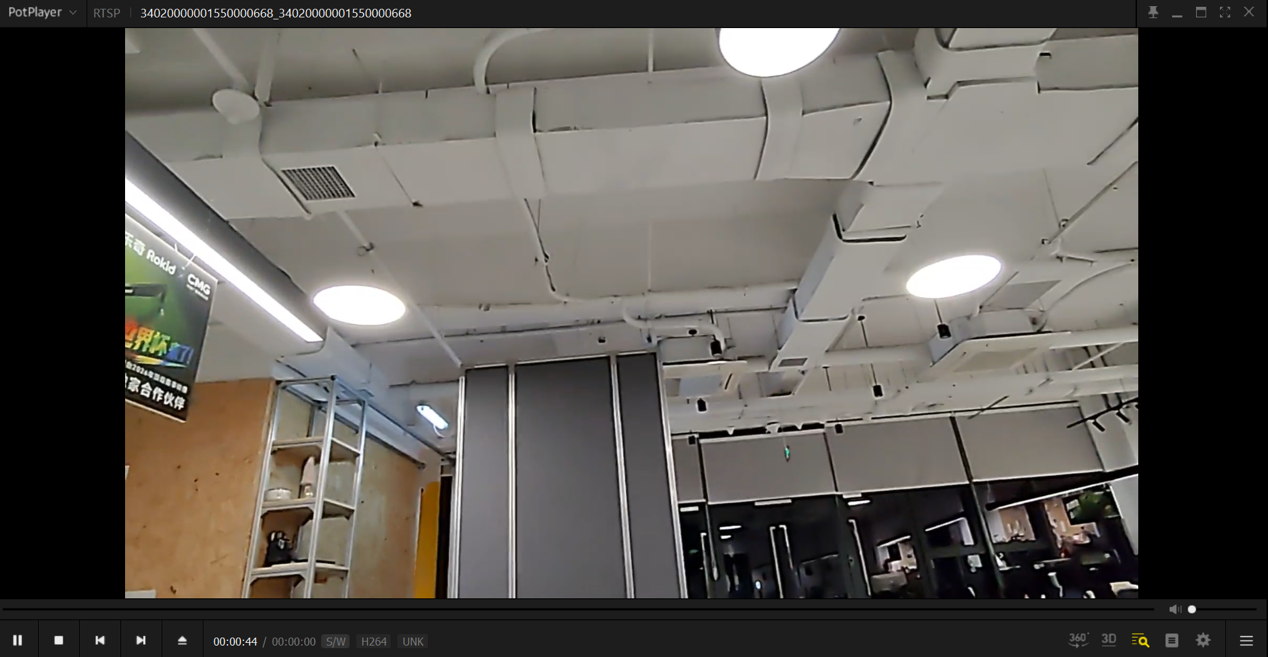
Windows: PotPlayer
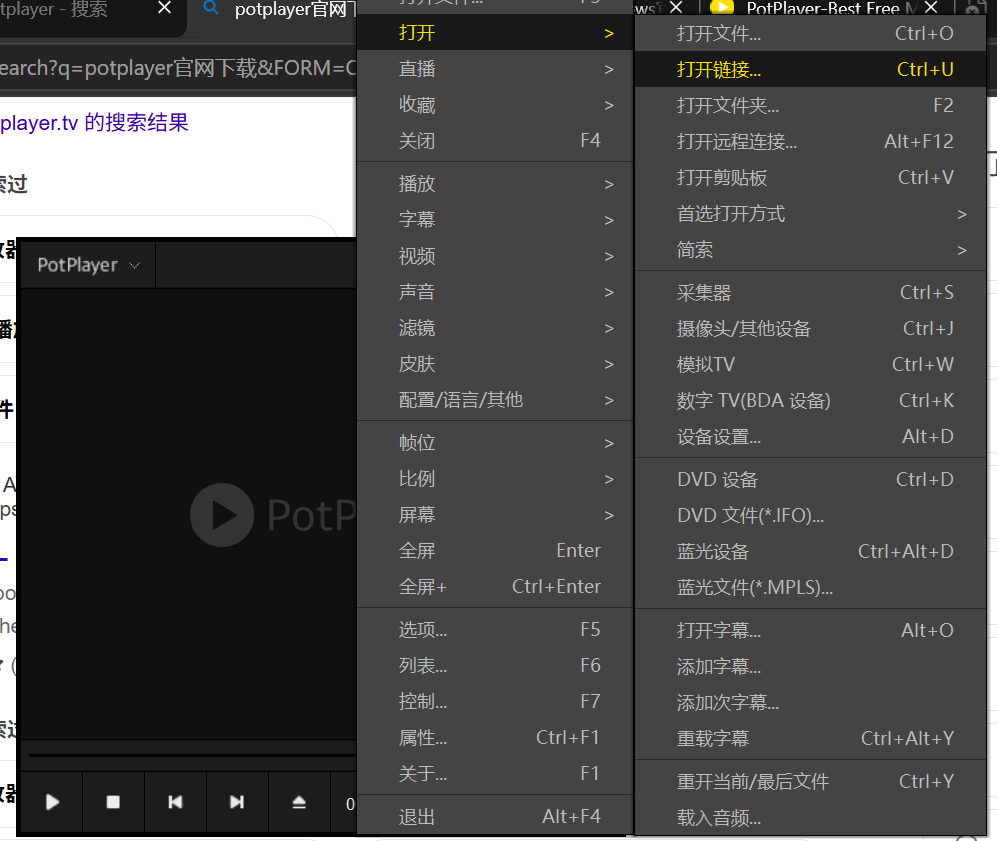
Open PotPlayer, right-click, choose Open, then choose Open URL.
Enter the RTSP URL and confirm.
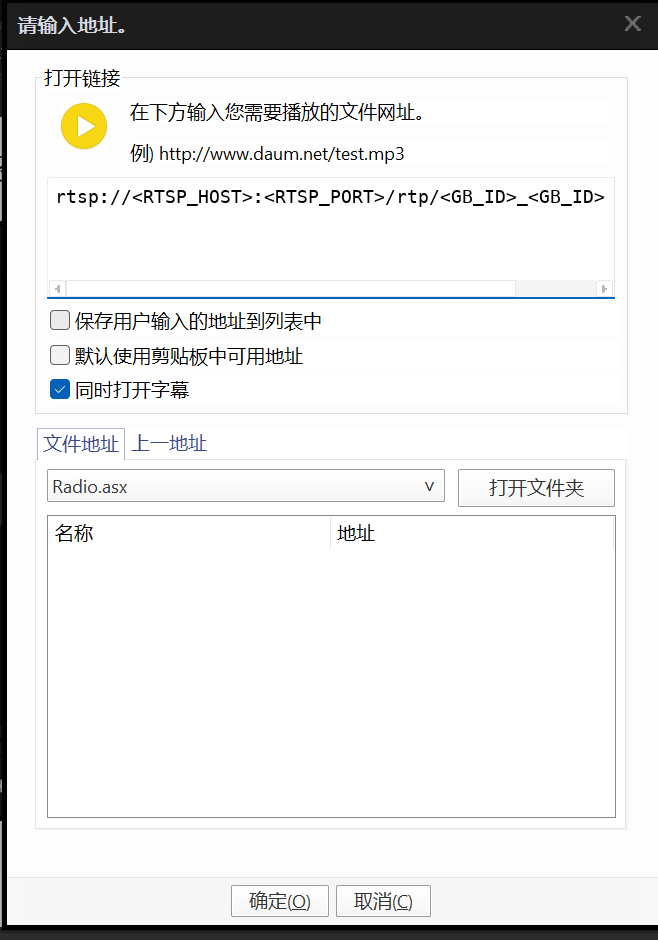
If live video from the glasses appears in the player, RTSP streaming is verified.
Follow-up Integration Ideas
After the RTSP stream plays stably, developers can continue platform-side integration based on business needs:
- Video monitoring platform integration: connect the RTSP URL to an existing video platform, NVR, video gateway, or monitoring wall.
- Live preview and dispatch: show the first-person view in dispatch consoles, command centers, or inspection systems.
- Recording and archiving: record the stream on the platform side for review, evidence, or quality checks.
- AI analysis and alerts: feed the stream into visual recognition, work orders, or alert workflows for security inspection and anomaly detection.
- Multi-end distribution: forward the stream to Web, desktop, or mobile business applications according to network and permission requirements.
Troubleshooting
| Symptom | Check |
|---|---|
| On-demand streaming fails on the platform | Confirm that the device is associated with the correct platform, the device is online, and the glasses network can reach the target video platform. |
| User or system information is missing | Use the Scan app on the glasses to scan the platform login QR code. Refresh the page after authorization succeeds. |
| GB ID cannot be found | Open the device edit page and check the GB ID generated or configured for the device. |
| RTSP URL cannot be played | Start on-demand streaming on the platform first, then check the RTSP URL format, GB ID, service address, and port. |
| Player connection times out | Confirm that the player computer can access the RTSP service address and port, and that network policies or firewalls are not blocking access. |
| Video is laggy or delayed | Check the glasses network quality, platform forwarding path, and player-side network environment. |